

Understanding the MS Word Workspace and Window
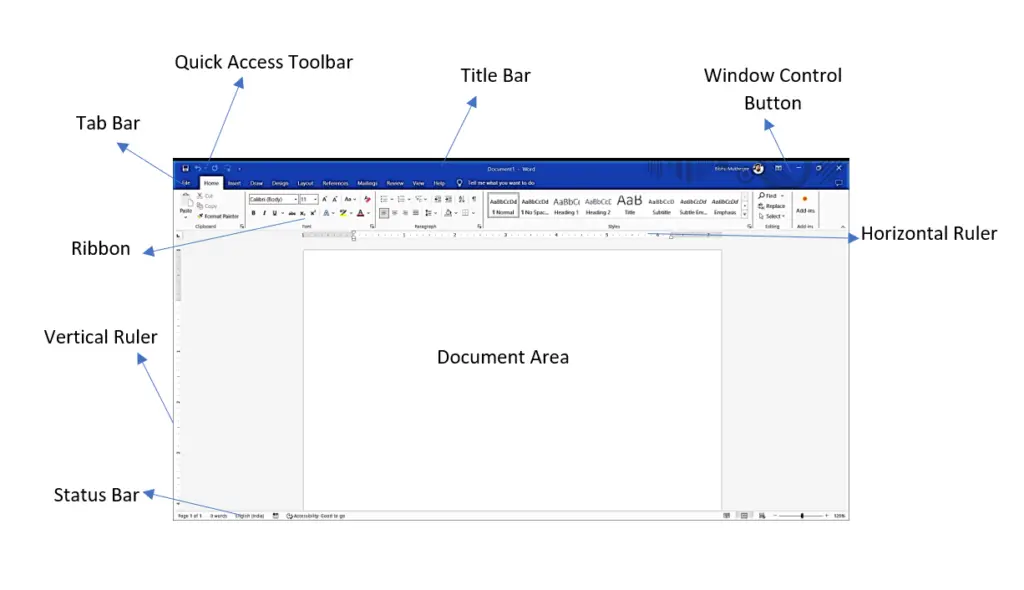
Microsoft Word is a widely used word processing application that offers a range of features to create, format, and edit documents. Understanding the workspace and window layout of MS Word is crucial for efficient document creation. Here’s a comprehensive guide to the MS Word workspace and window:
1. Title Bar
- Location: Topmost part of the window.
- Function: Displays the name of the current document and the application name. It also contains the Minimize, Maximize/Restore, and Close buttons.
2. Ribbon
- Location: Below the Title Bar.
- Function: The Ribbon is a set of toolbars grouped into tabs, each containing specific tools and commands.
- Tabs: Home, Insert, Design, Layout, References, Mailings, Review, View, and more.
- Groups: Within each tab, commands are organized into groups (e.g., the Home tab includes Clipboard, Font, Paragraph, Styles, and Editing groups).
3. Quick Access Toolbar
- Location: Above the Ribbon, to the left of the Title Bar.
- Function: Provides quick access to frequently used commands, such as Save, Undo, Redo, and Customize Quick Access Toolbar.
4. Document Area
- Location: Central part of the window.
- Function: The main workspace where you type and format your text. This area displays the content of your document.
5. Rulers
- Location: Horizontal ruler at the top of the document area and vertical ruler along the left side.
- Function: Helps in aligning text, graphics, and other elements. You can also use it to set margins, indents, and tab stops.
6. Status Bar
- Location: Bottom of the window.
- Function: Displays information about the document, such as the page number, word count, language, and zoom level. It also provides access to different view options.
7. Scroll Bars
- Location: Right side (vertical scroll bar) and bottom (horizontal scroll bar) of the document area.
- Function: Allows you to navigate through the document vertically and horizontally.
8. View Buttons
- Location: Bottom right of the window, on the Status Bar.
- Function: Provides different ways to view your document, such as Read Mode, Print Layout, and Web Layout.
9. Zoom Control
- Location: Bottom right corner of the window, on the Status Bar.
- Function: Allows you to zoom in or out of the document to adjust the view size.
Detailed Breakdown of Ribbon Tabs
Home Tab
- Clipboard: Cut, Copy, Paste, Format Painter.
- Font: Font type, size, color, bold, italic, underline, strikethrough, subscript, superscript.
- Paragraph: Alignment, line spacing, bullets, numbering, borders, shading.
- Styles: Quick styles for headings, titles, and other text elements.
- Editing: Find, Replace, Select.
Insert Tab
- Pages: Cover Page, Blank Page, Page Break.
- Tables: Insert tables and manage table properties.
- Illustrations: Pictures, Shapes, Icons, 3D Models, SmartArt, Chart, Screenshot.
- Links: Hyperlink, Bookmark, Cross-reference.
- Header & Footer: Add and edit headers, footers, and page numbers.
- Text: Text Box, Quick Parts, WordArt, Drop Cap, Signature Line.
- Symbols: Equation, Symbol.
Design Tab
- Document Formatting: Themes, Colors, Fonts, Effects.
- Page Background: Watermark, Page Color, Page Borders.
Layout Tab
- Page Setup: Margins, Orientation, Size, Columns, Breaks, Line Numbers, Hyphenation.
- Paragraph: Indent, Spacing.
- Arrange: Position, Wrap Text, Bring Forward, Send Backward, Align, Group, Rotate.
References Tab
- Table of Contents: Automatic and manual tables.
- Footnotes: Insert footnotes and endnotes.
- Research: Smart Lookup, Researcher.
- Citations & Bibliography: Manage sources, Insert Citation, Bibliography.
- Captions: Insert Caption, Cross-reference.
- Index: Mark Entry, Insert Index.
- Table of Authorities: Mark Citation, Insert Table of Authorities.
Mailings Tab
- Create: Envelopes, Labels.
- Start Mail Merge: Step-by-Step Mail Merge Wizard.
- Write & Insert Fields: Highlight Merge Fields, Address Block, Greeting Line.
- Preview Results: Preview mail merge.
- Finish: Finish & Merge.
Review Tab
- Proofing: Spelling & Grammar, Thesaurus, Word Count.
- Speech: Read Aloud.
- Accessibility: Check Accessibility.
- Language: Translate, Language, Set Proofing Language.
- Comments: Add, Delete, Previous, Next.
- Tracking: Track Changes, Show Markup, Reviewing Pane.
- Changes: Accept, Reject, Previous, Next.
- Compare: Compare, Combine.
- Protect: Restrict Editing.
View Tab
- Views: Read Mode, Print Layout, Web Layout.
- Show: Ruler, Gridlines, Navigation Pane.
- Zoom: Zoom, 100%, One Page, Multiple Pages, Page Width.
- Window: New Window, Arrange All, Split, View Side by Side, Synchronous Scrolling, Reset Window Position, Switch Windows.
- Macros: View Macros, Record Macro, Pause Recording.
Understanding and mastering the MS Word workspace and window layout can significantly enhance your productivity and document management skills.